Copy & Paste
Copy and Paste functionality allows you to reuse existing work in Kryptos without having to recreate it. You can copy individual items such as decks, grades, detectors, entire configurations, or even an area's settings - either specific settings or all the settings together.
Copied items can be pasted elsewhere in the same area, into another area, or across different projects.
Where the Buttons Are
Copy is always available in the area's ribbon. Its drop down menu lists the items that can be copied from the currently selected item in the area tree, followed by options for copying area-level content.
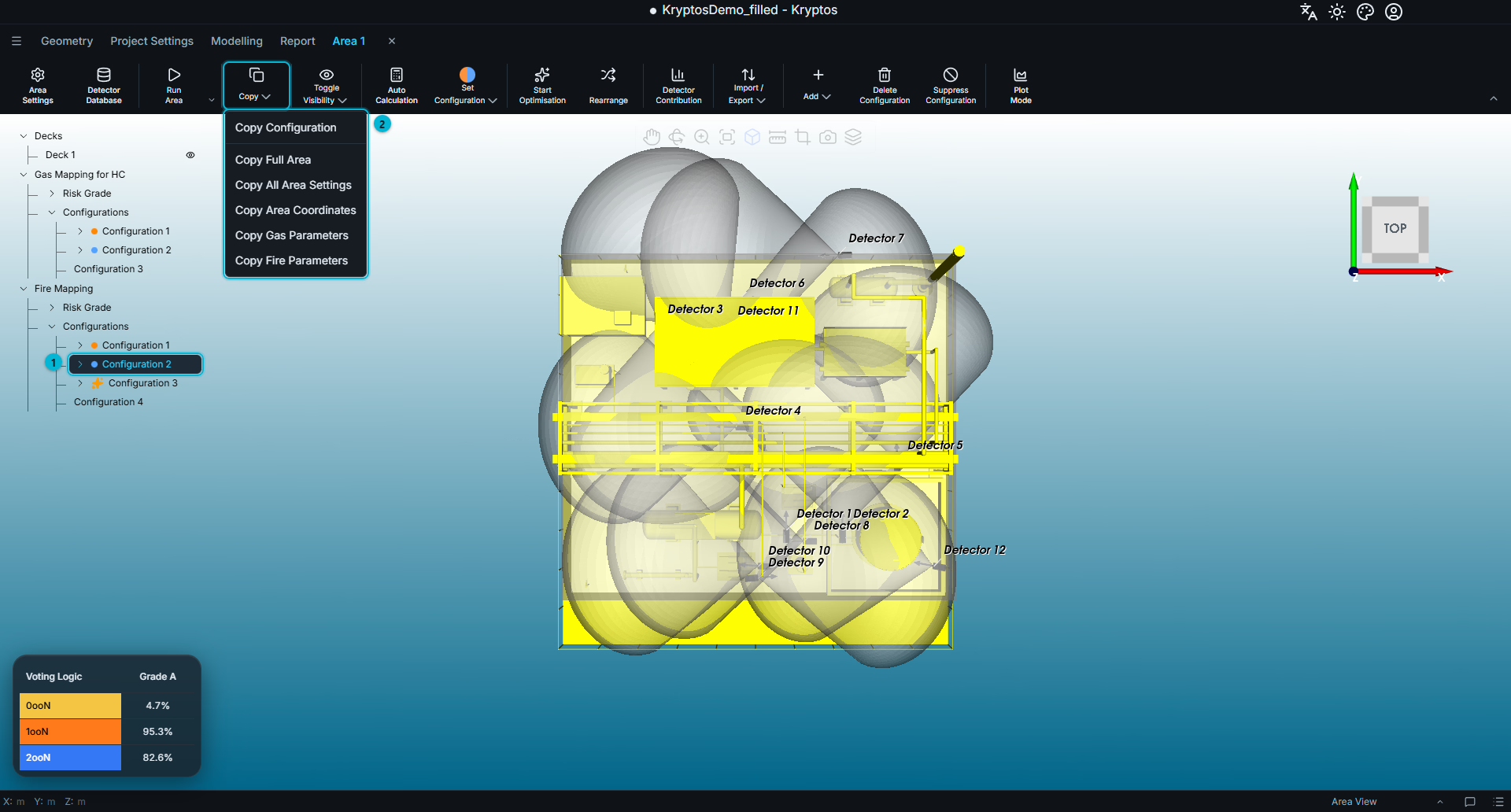
- Selected item — determines the first item offered in the Copy menu. In this example, Configuration 2 is selected. Hence, the first item offered in the Copy menu is Copy Configuration.
- Copy menu — lists copying the selected item, followed by the available area-level copy options.
Paste appears next to Copy only when an item has been copied and the currently selected item in the left-hand-side Tree is a valid destination for it.
If Paste is not visible, select a different item in the Tree that can accept the copied content. For example, if you have copied a configuration of detectors but while pasting it, Risk Grade is selected in the Tree, then it will not allow you to paste the Configuration. Once you select Configurations in the Tree (as shown in the image below), you will be able to paste the copied configuration.
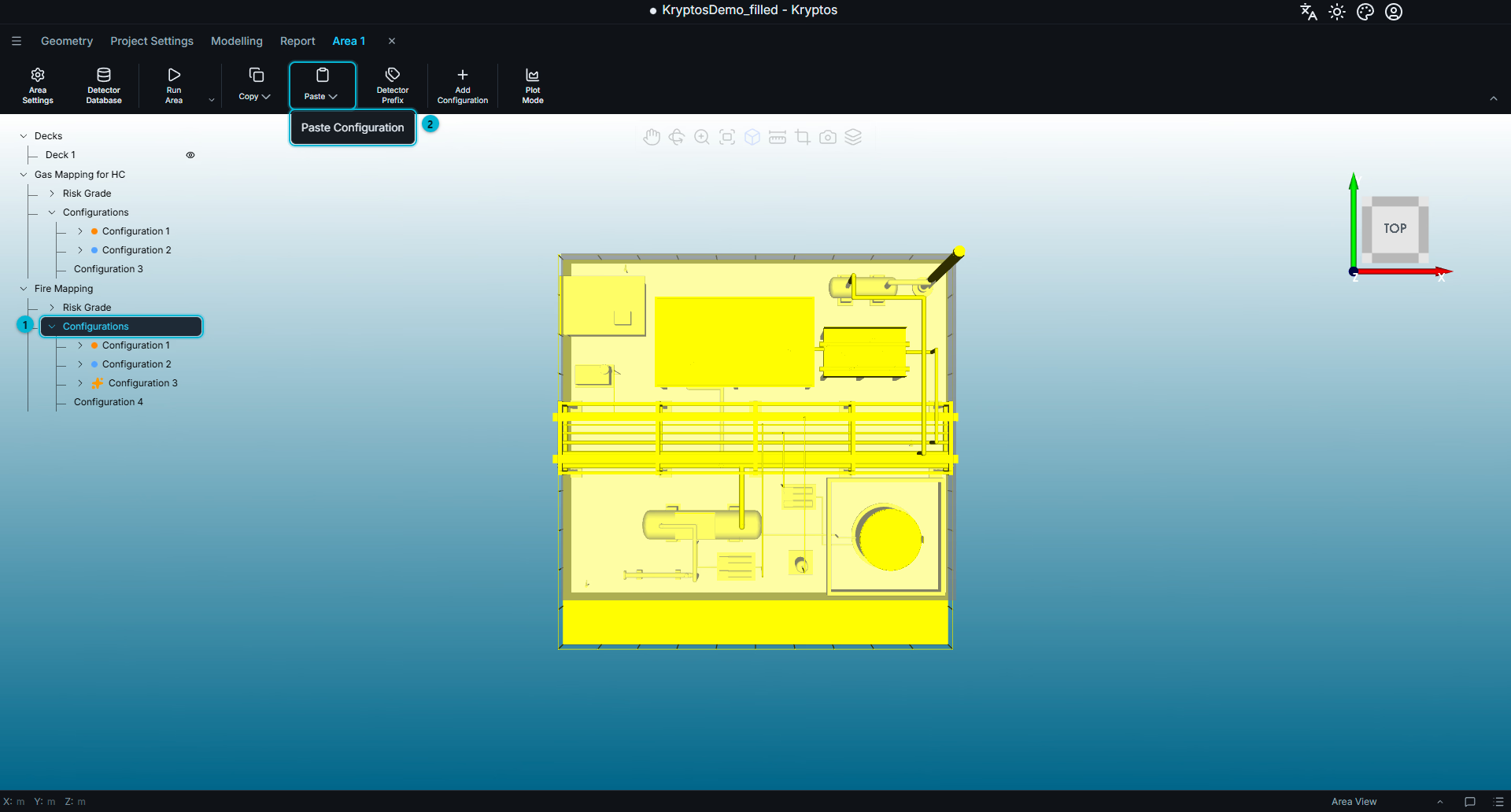
- Selected item — determines where the copied content will be pasted.
- Paste menu — lists the copied item or items available for pasting.
What You Can Copy, and Where It Goes
The following items can be copied by first selecting them in the area tree:
| Copy Items | Select this to paste | What happens |
|---|---|---|
| Deck | Decks, or any deck | Adds the copied deck to the destination area. |
| Decks (all of them) | Decks, or any deck | Replaces all existing decks in the destination area. |
| Grade | Risk Grade, or any grade | Adds the copied grade to the destination area. |
| Grades (all of them) | Risk Grade, or any grade | Replaces all existing grades in the destination mapping. |
| Configuration | Configurations | Adds the copied configuration, including its detectors as a new configuration in the destination. |
| Configuration | An existing configuration | Replaces the detectors in the selected configuration. |
| Detector | A configuration, or any detector | Adds the copied detector. |
In addition to individual items, the Copy menu always provides the following area-level options. These can be pasted regardless of which item is currently selected in the Tree in the destination area.
| Copy | What gets replaced in the destination area |
|---|---|
| Full Area | Everything in the area. |
| All Area Settings | All gas and fire parameters. |
| Area Coordinates | The area's bounds. |
| Gas Parameters | The gas mapping parameters. |
| Fire Parameters | The fire mapping parameters and fire detection method. |
WARNING
Pasting an item that replaces existing content cannot be undone.
Kryptos displays a confirmation prompt to the user before proceeding and identifies the content that will be replaced. Review the prompt carefully before confirming.
TIP
Copied content can only be pasted once into compatible destinations. If you want to paste the same copied content in multiple destinations, you will have to copy them separately for each destination.
- Gas Parameters and All Area Settings can only be pasted between areas that have the same gas components enabled.
- Configurations and detectors can only be pasted into a mapping of the same type — Gas to Gas, and Fire to Fire.
Kryptos will not allow you to paste content into an incompatible destination.
Between Projects
Copy and Paste also work across projects. You can copy an item from one project, open another project, and paste the copied content into it.
When you switch projects, the Paste menu identifies the copied item along with the name of the project it originated from.
Only one license/seat available?
If your licence has only one seat, you can still copy content between projects without having to close and reopen them repeatedly.
Use Open read only to open the project you want to copy from. Copy the required items, then open the project you want to work on. The copied items will be available in its Paste menu.
Open read only is available from the Home screen and the project menu. Opening a project in this mode does not consume a licence seat.
Related
- Mapping — working with risk grades, configurations and detectors
- Area Settings — configuring the area settings that can be copied