Running Calculations
Kryptos does not automatically recalculate coverage every time you make a change. Once your risk grades and detectors are in place, you can choose when to run the calculations and how much of the area to recalculate.
There are four ways to run calculations. The buttons available in the ribbon depend on which item you have selected in the area tree.
Which Buttons Appear When
| Selected in the tree | Available buttons |
|---|---|
| Anything within the area | Run Area |
| A mapping (Gas or Fire) | Run Area, Run Mapping |
| A configuration | Run Area, Run Specific Configuration, Auto Calculation |
Run Area is always available. The other three options appear only when the relevant item is selected.
TIP
If the button you need is not visible, check which item is selected in the tree.
- Run Mapping requires any item within Gas Mapping or Fire Mapping to be selected. If the Deck part of the Tree is selected, then only Run Area option will be available.
- Run Specific Configuration and Auto Calculation require a configuration to be selected.
Run Area
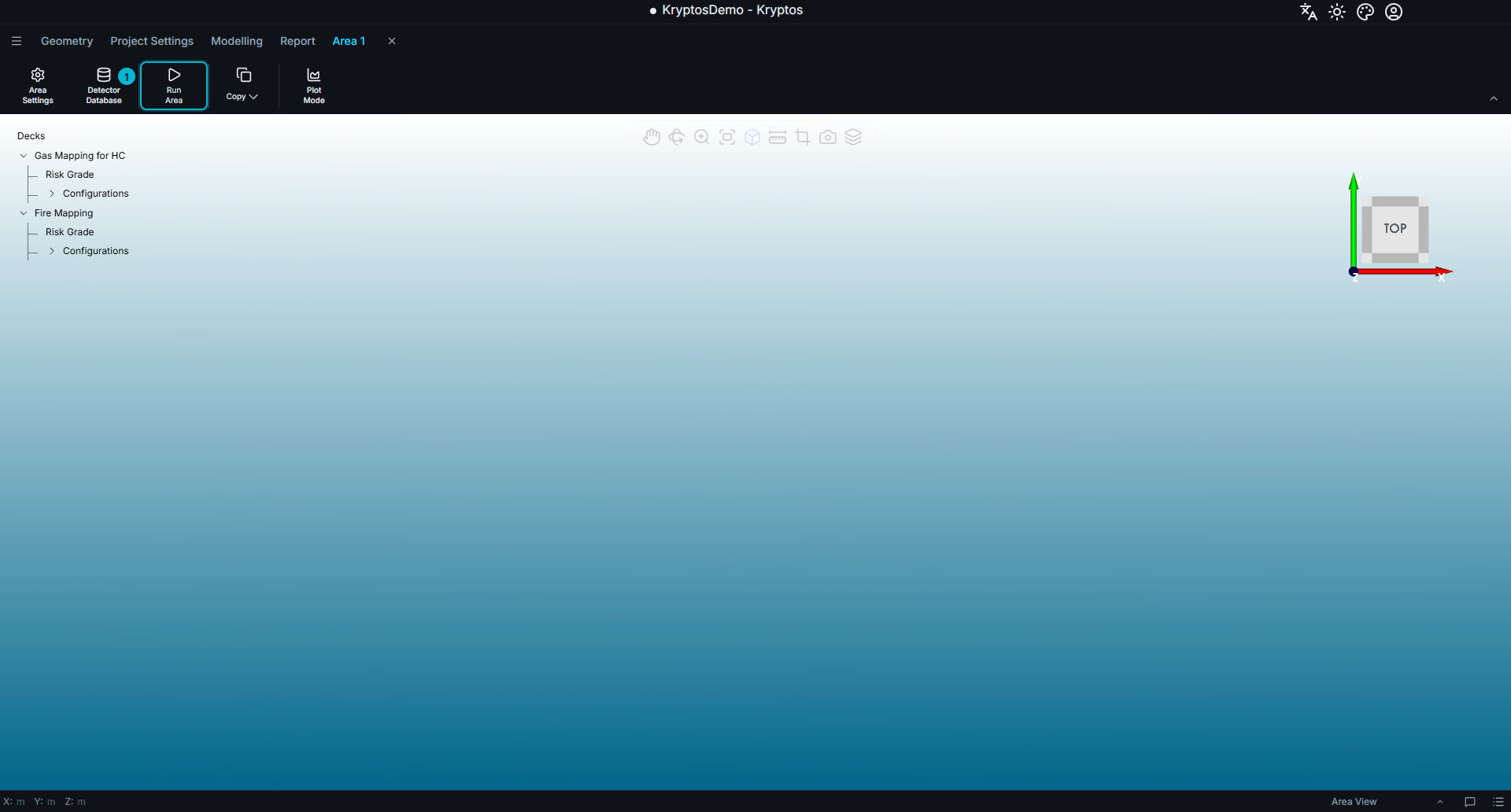
- Run Area — runs all calculations within the selected area.
This is the most comprehensive calculation option. It runs all the mapping and all configurations in the area.
Use it when you want all results within the area to be up to date — for example, before generating a report or after making changes (example, changes to area dimensions, risk grades, etc..) that affect multiple configurations.
As it recalculates everything, including configurations that may not have changed, this is also the most time-consuming option.
Run Mapping
Select a Gas or Fire mapping in the area tree.
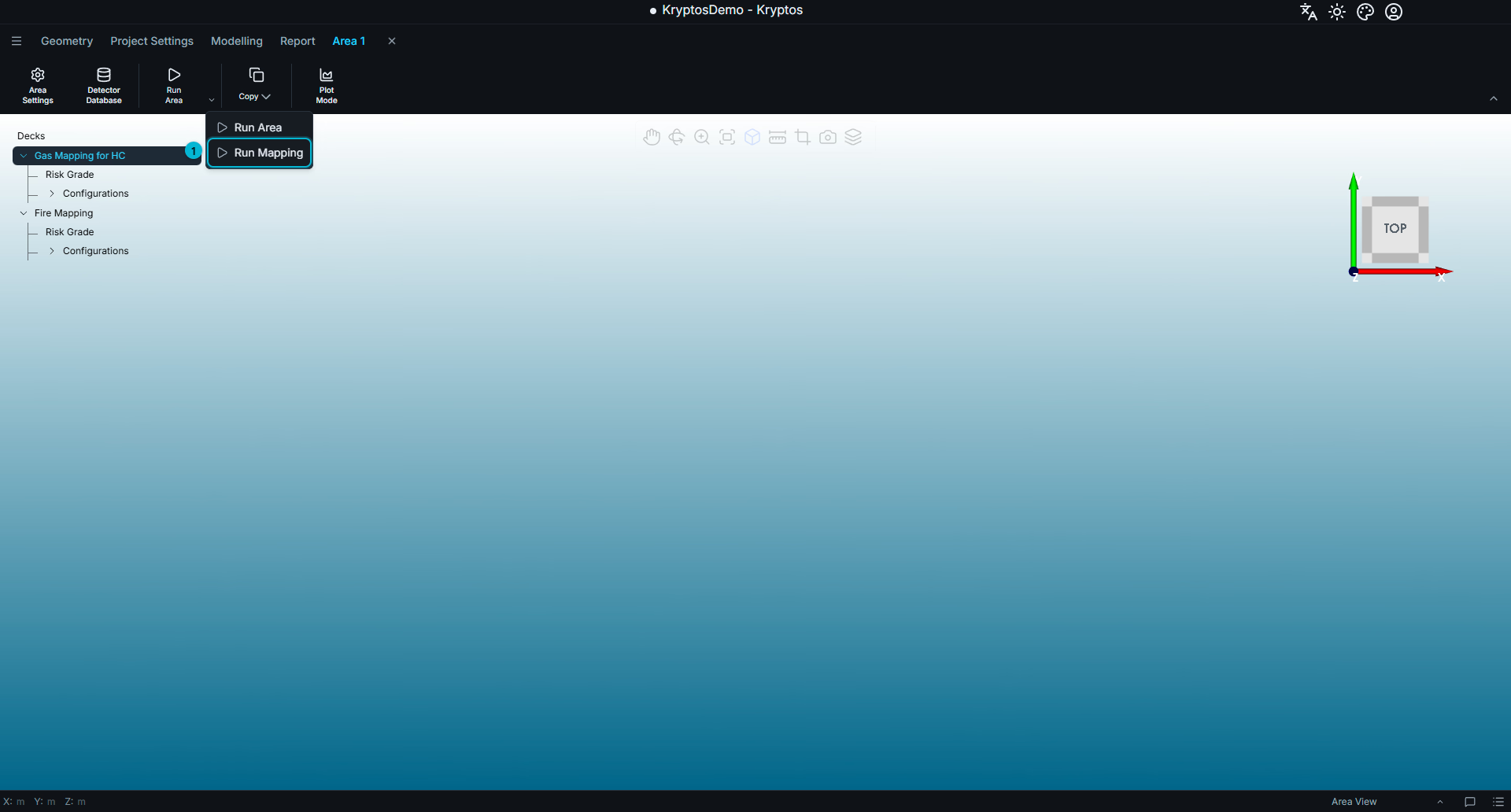
- Run Mapping — runs all configurations under the selected mapping.
Only the selected mapping is recalculated; other mappings in the area remain untouched.
For example, if your area includes both Gas and Fire mapping but you have been working only on the Fire mapping, use this option to update the Fire results without recalculating the Gas mapping.
Run Specific Configuration
Select a configuration in the area tree.
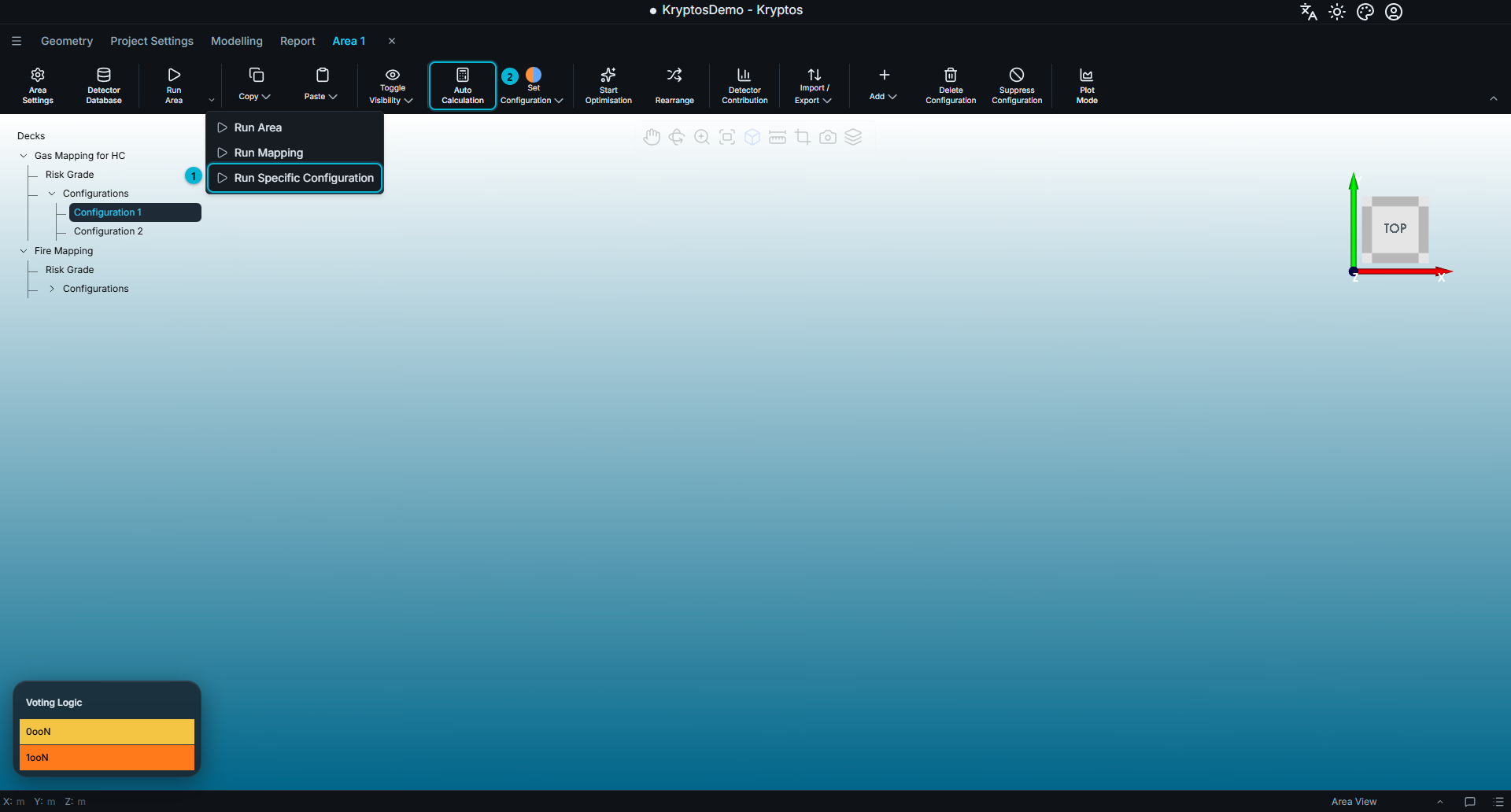
- Run Specific Configuration — runs only the selected configuration.
- Auto Calculation — automatically updates the selected configuration as you make changes.
This is the most targeted calculation option. It recalculates one configuration without affecting any others.
Use it when fine-tuning an individual detector layout and you want to update its coverage without recalculating the rest of the mapping.
Auto Calculation
Auto Calculation is a switch rather than a one-time calculation command. When enabled, Kryptos automatically updates the coverage for the selected configuration whenever you make changes to it. You do not need to click a calculation button after every edit.
This is particularly useful when placing or adjusting detectors. For example, when you move a detector, Kryptos automatically updates the coverage results to reflect its new position.
WARNING
Run the configuration once before enabling Auto Calculation.
Auto Calculation keeps an already-calculated configuration up to date; it does not perform the initial calculation.
If the configuration has changed since it was last calculated, Kryptos will prompt you to run the calculation first.
If an automatic update fails, Kryptos will indicate that the configuration needs to be recalculated. Click Run Specific Configuration to run it again.
WARNING
Auto Calculation applies only to the configuration currently being edited. It does not update other configurations or mappings. Their results may therefore become out of date while you work.
Before generating a report, use Run Area to ensure that all calculation results within the area are up to date.
Choosing a Run Option
The four options allow you to balance calculation time against the amount of work that needs to be recalculated:
- Working on a single detector layout — use Auto Calculation for automatic updates, or Run Specific Configuration when you prefer to run calculations manually.
- Finished working on one mapping — use Run Mapping to update all configurations under that mapping.
- Preparing a report or unsure which results are out of date — use Run Area to recalculate everything within the area.
TIP
Calculations run in the background. You can monitor their progress in the Job Queue, which is accessible from the bottom bar. This allows you to continue working on other mappings or other areas while a calculation is running.
Related
- Mapping — creating and managing the grades and configurations used in calculations
- Plot — 3D & Slice — visualising calculation results
- Detector Contributions & Rankings — identifying which detectors contribute most to coverage